Форум
GUI Твикеры
BigOrange:
графическую утилиту насройки
А на что именно? Если вообще... То Linux Mint! Там ГУИ есть для всего, даже для того для чего они и вовсе не нужны! =) А если для кокого то конкретно дистра, то для какого именно?
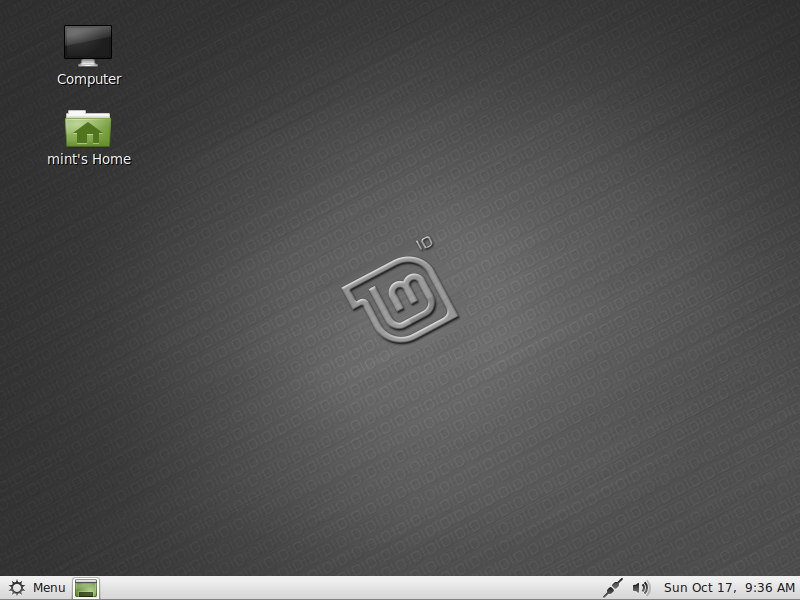
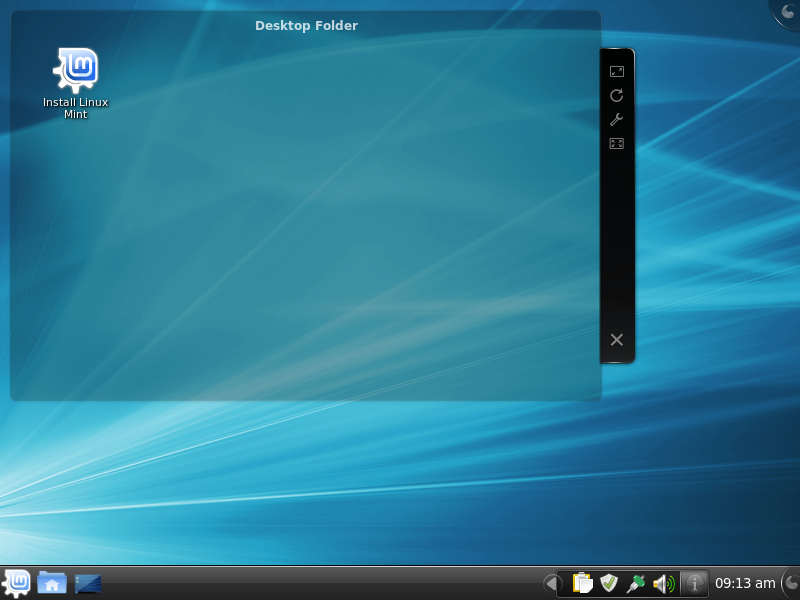
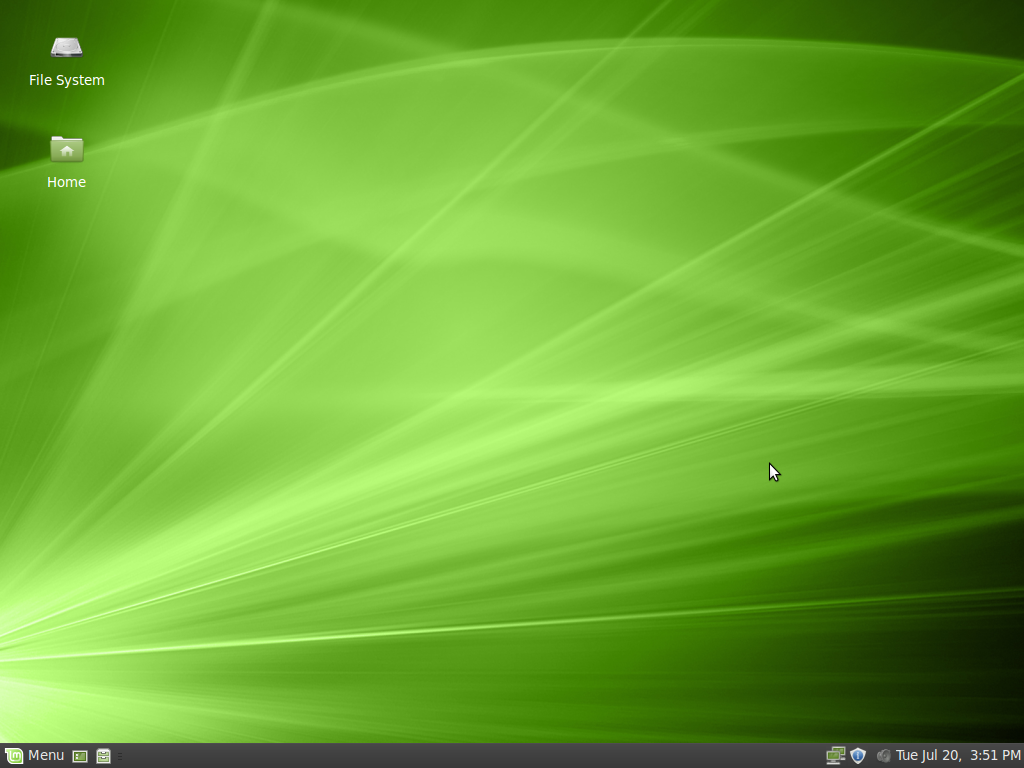
вот так начинающие руками как влезут обычно, потом система (на их взгляд) грохнется, и возвращаются назад в винду :(
Хотя... сам лез везде, грохал и переставлял порой несколько раз на день :) и ничего, таки освоил! :) Со временем понял, куда смотреть, что чинить, и переставляю систему теперь крайне редко :)
Добавлено позже:
хм, у нас нет обзора "Ubuntu tweak" :) Если дистрибутив "Ubuntu", то стоит его попробовать сперва. Посмотреть, что там есть, чего нет...
Добавлено позже:
да, вот ещё есть нечто: Ailurus
бубнта, конечно, 10,04,1
ubuntu-tweak посмотрел, чет ничего не нашёл такого прям уж сверхестественного.
наверное потому, что всё это можно и руками сделать, так как эти фишки популярны и часто обсуждаются.
а на митбунту смотрю вот, думаю доконаю рыся, тогда и минт поставлю.
про винду вспоминаю только когда друзья приходят, у меня там аблетон стоит (порт с мака) - божественная программа в своей категории.
линуксу до неё далече. мак он в аудио-видео надолго первое место занял
У меня установлены и ubuntu-tweak и Ailurus.
Сказать кто из них лучше... Они друг друга дополняют. Надо самому на них посмотреть исходя из своих требований. Но Ailurus - это очень достойный конкурент для ubuntu-tweak. Многое ( но не все ) там реализовано лучше и шире . Так присутствует раздел настройки файрфокса которого нет в ubuntu-tweak . Но в ubuntu-tweak есть раздел, где можно сопоставить типы файлов с приложениями.
А вобщем - не нужны ни та ни другая (имхо) :)
Есть вопрос.
В Ailurus, в разделе память, есть опция - изменить способ обмена памяти с диском - шкала от 0 (частично на диск ) до 100
( большую часть на диск ) Разъясните, пожалуйста, суть этой опции. И какой уровень является оптимальным ? ( размер оперативки 2 гб )
Игорь:
суть этой опции. И какой уровень является оптимальным ? ( размер оперативки 2 гб )
Суть... Ну это нужно почитать про Свопинг (от англ. swap, /swɔp/); Подкачка страниц (англ. термин — англ. Paging) — один из механизмов виртуальной памяти, при котором отдельные фрагменты памяти (обычно неактивные) перемещаются из ОЗУ на жёсткий диск, освобождая ОЗУ для загрузки других фрагментов памяти.
Собственно интенсивность его использования она и выставляет! Но при 2 и выше гиг памяти это и не нужно... По крайней мере мне! Поставить на середину и всё!
ну да, я думаю, что эта опция влияет на интенсивность использования свопа. Чем меньше он используется, тем лучше.
ЗЫ у меня на ноуте 3 Гб. И бывает, что не хватает :P
$ free -m
             total       used       free     shared    buffers     cached
Mem:          3014       2931         83          0         55       1602
-/+ buffers/cache:       1273       1741
Swap:            0          0          0
Это, можно сказать, свежезагруженный ноут. Открыты только pidgin, Google Chrome с сотней вкладок и остальное по мелочи. Вот если я запущу сейчас Seamonkey, то начнёт жрать своп ))) потому что там сотни 3-4 вкладок :)
Игорь:
GUI-утилита, в которой можно регулировать значение DPI
Уточнить бы, нужно регулировать DPI шрифта, монитора или мыша?
Ведь у мыши есть параметр DPI, у шрифта (в настройках рендеринга) и у монитора тоже.
Зачем обязательно GUI-утилита?
Например, DPI LCD монитора:
Спойлер
Проверяем текущие настройки размеров дисплея и разрешения командой:
xdpyinfo | grep -B2 resolution
screen #0:
dimensions: 1920x1080 pixels (597x336 millimeters)
resolution: 82x82 dots per inch
Эти строчки показывают каким система видит видит наш монитор.
Для начала идем суда: http://www.theile.net/~sven/dpi.html и рассчитавшем параметры нашего LCD монитора.
Далее в каталоге /usr/share/X11/xorg.conf.d создаем файл 90-monitor.conf такого содержания:
Section "Monitor"
Identifier "Monitor0"
DisplaySize 346 195 # In millimeters
EndSectionSection "Screen"
Identifier "Screen0"
Monitor "Monitor0"
EndSection
В строке DisplaySize нужно указать размеры своего дисплея в миллиметрах рассчитанные в DPI калькуляторе. После перезагрузки проверяем вывод xdpyinfo значение resolution должно быть максимально близким к рассчитанным.
Мышь... Спойлер
Она сообщает- я пробежала 3 дюйма, а X сервер пытается курсор на 3 дюйма сместить.
Править через gconf-editor /desktop/gnome/peripherals/mouse
motion_acceleration - Множитель ускорения движения мыши
motion_threshold - Расстояние в пикселах, на которое надо передвинуть указатель, прежде чем будет активировано ускорение движения мыши.
Много есть ещё решений, а для шрифтов вообще море...
Но GUI для этого одноразового действа, нет, не видел вроде как...
Так в чём DPI рекультивировать? :)))
Ну начнём с того что Openbox это просто оконный менеджер а не полноценное ДЕ (с всем набором утилит и конфигураторов), засим вы вольны повесить на него всё что угодно и откуда угодно... Можно взять что надо из GNOME или XFCE и использовать. У меня например, Openbox обвешан нужными мне кусочками из MATE (панель, некоторые апплеты, файловый менеджер и ещё несколько утилит). Всё целиком ДЕ мне не нужно, использую из него только то что мне надо (так сказать гибридное окружение). Вот как то так, всё сделано в лучших традициях разумного минимализма! :)))Игорь:
как в том же XFCE - кликаешь по счетчику и сразу видишь результат
posixru:
в каталоге /usr/share/X11/xorg.conf.d создаем файл 90-monitor.conf такого содержания:Спойлер
Section "Monitor"
Identifier "Monitor0"
DisplaySize 346 195 # In millimeters
EndSectionSection "Screen"
Identifier "Screen0"
Monitor "Monitor0"
EndSection
Пробовал несколько раз этот способ на lubuntu 12.04 - не работает. Загрузка системы останавливается на этапе логотипа и все.
Пробовал этот же способ, но чуть по другому https://bbs.archlinux.org/viewtopic.php?id=133815
Спойлер
$ cat /etc/X11/xorg.conf.d/90-monitor.conf
Section "Monitor"
Option "UseEdidDpi" "false"
Identifier "Monitor0"
DisplaySize *** ***
EndSectionSection "Screen"
Identifier "Screen0"
Monitor "Monitor0"
EndSection
Система загружается, но
xdpyinfo | grep -B2 resolution
xdpyinfo | grep -B1 dot
показывают, что изменений не произошло.
Менял обозначение монитора с 0 на 1 - бестолку.
Работает вот это http://askubuntu.com/questions/197828/how-to-find-and-change-the-screen-dpi
Спойлер
Actually you should do 2 things to set your DPI correctly.I'll explain on example. I'm using Ubuntu LTS 12.04 with Gnome Classic and I've got a monitor with resolution 1680x1050. Let's check my starting settings: xdpyinfo | grep dots reports 96x96 dots , xrdb -query | grep dpi reports Xft.dpi: 96 , cat /var/log/Xorg.0.log | grep DPI reports some weird settings NOUVEAU(0): DPI set to (90, 88).
Let's calculate optimal DPI for my monitor. Actual size of the screen in centimetres can be found with xrandr | grep -w connected or with the long ruler by hand. In my case: X = 47.4cm ; Y = 29.6cm. Divide them by 2.54 to get the size in inches: X ~ 18.66in ; Y ~ 11.65in. Now divide actual dots amount (based on your resolution) by the size in inches: X = 1680/18.66 ~ 90dpi ; Y = 1050/11.65 ~ 90dpi. So my real dpi is 90. Let's start fixing it:
1) Run gksudo gedit, open /etc/lightdm/lightdm.conf and add a parameter under [SeatDefaults] section:
xserver-command=X -dpi 90
Restart your computer or restart X. Now xdpyinfo | grep dots will report 90x90 dots and cat /var/log/Xorg.0.log | grep DPI will also show the desired setting.
Alternative variant, which doesn't depend on lightdm: create a file 77set_dpi somewhere (in home folder for example) and put the line in it:
xrandr --dpi 90x90
Then run sudo mv ~/77set_dpi /etc/X11/Xsession.d/ and restart. The result should be the same (though in my case it won't fix the setting shown in Xorg log).
2) In GNOME3 DPI setting is hardcoded to 96 and cannot be changed directly, but the text can be scaled instead. Calculate the desired multiplier: desired_DPI / 96 (in my case 90/96 = 0.9375). Now run the command (or use dconf if you prefer):
gsettings set org.gnome.desktop.interface text-scaling-factor 0.9375
Changes will be applied immediately and xrdb will also be updated on the fly. xrdb -query | grep dpi will report the desired Xft.dpi: 90.
Now DPI is correctly set for the monitor.
P.S. There is another method to fix DPI setting much more difficult than double-step method mentioned above: download the sources of 'gnome-settings-daemon', fix the hardcoded setting in it and recompile them as mentioned in the guide http://blog.drtebi.com/2012/12/changing-dpi-setting-on-gnome-34.html. I tried it also, but the result is absolutely the same.
Калькулятор диагонали проектора и монитора
Параметры
http://100gs.ru/calc-cinema-ekran.htm
Спойлер
Видимая область: 345.39 мм x 194.18 ммСоотношение: 683 : 384
Размер пиксела: 0.252 мм
Удельное разрешение: 100.454 пкс/дюйм
То же - http://pxcalc.com/Спойлер
DPI: 100.45
Dot Pitch: 0.2529mm
Size: 13.6" × 7.65" (34.54cm × 19.42cm)
Aspect Ratio: 683 × 384 (1.78:1)
Pixel Count: 1,049,088
Megapixels: 1.05MP
Follow the white rabbit, Neo.Blinking Cursor
Или
$ xrandr
Спойлер
~$ xrandrScreen 0: minimum 320 x 200, current 1366 x 768, maximum 8192 x 8192
VGA1 disconnected (normal left inverted right x axis y axis)
LVDS1 connected 1366x768+0+0 (normal left inverted right x axis y axis) 344mm x 193mm
1366x768 60.0*+
1360x768 59.8 60.0
1024x768 60.0
800x600 60.3 56.2
640x480 59.9
DP1 disconnected (normal left inverted right x axis y axis)
~$
----------------------------------------------
Display Size and DPI https://wiki.archlinux.org/index.php/Xorg#Display_Size_and_DPI
Спойлер
Display Size and DPIThe DPI of the X server is determined in the following manner:
The -dpi command line option has highest priority.
If this is not used, the DisplaySize setting in the X config file is used to derive the DPI, given the screen resolution.
If no DisplaySize is given, the monitor size values from DDC are used to derive the DPI, given the screen resolution.
If DDC does not specify a size, 75 DPI is used by default.
In order to get correct dots per inch (DPI) set, the display size must be recognized or set. Having the correct DPI is especially necessary where fine detail is required (like font rendering). Previously, manufacturers tried to create a standard for 96 DPI (a 10.3" diagonal monitor would be 800x600, a 13.2" monitor 1024x768). These days, screen DPIs vary and may not be equal horizontally and vertically. For example, a 19" widescreen LCD at 1440x900 may have a DPI of 89x87. To be able to set the DPI, the Xorg server attempts to auto-detect your monitor's physical screen size through the graphic card with DDC. When the Xorg server knows the physical screen size, it will be able to set the correct DPI depending on resolution size.
To see if your display size and DPI are detected/calculated correctly:
$ xdpyinfo | grep -B2 resolution
Check that the dimensions match your display size. If the Xorg server is not able to correctly calculate the screen size, it will default to 75x75 DPI and you will have to calculate it yourself.
If you have specifications on the physical size of the screen, they can be entered in the Xorg configuration file so that the proper DPI is calculated:
Section "Monitor"
Identifier "Monitor0"
DisplaySize 286 179 # In millimeters
EndSection
If you only want to enter the specification of your monitor without creating a full xorg.conf create a new config file. For example (/etc/X11/xorg.conf.d/90-monitor.conf):
Section "Monitor"
Identifier "<default monitor>"
DisplaySize 286 179 # In millimeters
EndSection
If you do not have specifications for physical screen width and height (most specifications these days only list by diagonal size), you can use the monitor's native resolution (or aspect ratio) and diagonal length to calculate the horizontal and vertical physical dimensions. Using the Pythagorean theorem on a 13.3" diagonal length screen with a 1280x800 native resolution (or 16:10 aspect ratio):
echo 'scale=5;sqrt(1280^2+800^2)' | bc # 1509.43698
This will give the pixel diagonal length and with this value you can discover the physical horizontal and vertical lengths (and convert them to millimeters):
echo 'scale=5;(13.3/1509)*1280*25.4' | bc # 286.43072
echo 'scale=5;(13.3/1509)*800*25.4' | bc # 179.01920
Note: This calculation works for monitors with square pixels; however, there is the seldom monitor that may compress aspect ratio (e.g 16:10 aspect resolution to a 16:9 monitor). If this is the case, you should measure your screen size manually.
Setting DPI manually
DPI can be set manually if you only plan to use one resolution (DPI calculator):
Section "Monitor"
Identifier "Monitor0"
Option "DPI" "96 x 96"
EndSection
If you use an NVIDIA card, you can manually set the DPI adding the options bellow on /etc/X11/xorg.conf.d/20-nvidia.conf (inside Device section):
Option "UseEdidDpi" "False"
Option "DPI" "96 x 96"
For RandR compliant drivers, you can set it by:
xrandr --dpi 96
See Execute commands after X start to make it permanent.
Note: while you can set any dpi you like and applications using Qt and GTK will scale accordingly, it's recommended to set it to 96, 120 (25% higher), 144 (50% higher), 168 (75% higher), 192 (100% higher) etc., to reduce scaling artifacts to GUI that use bitmaps. Reducing it below 96 dpi may not reduce size of graphical elements of GUI as typically the lowest dpi the icons are made for is 96.
Xrandr
https://wiki.archlinux.org/index.php/Xrandr#Adding_undetected_resolutions
XRandR: настройка режимов работы с дисплеями (мониторами) в GNU/Linux
http://www.linuxnow.ru/view.php?id=103
Управление видеорежимами с помощью xrandr
http://dep346.narod.ru/articles/xrandr/
Xrandr и работа с экраном и мониторами
http://blog.lisss.ru/archives/43
Если посылать новичка,то посылать надо сюда: http://rosinka.rosix.ru/